
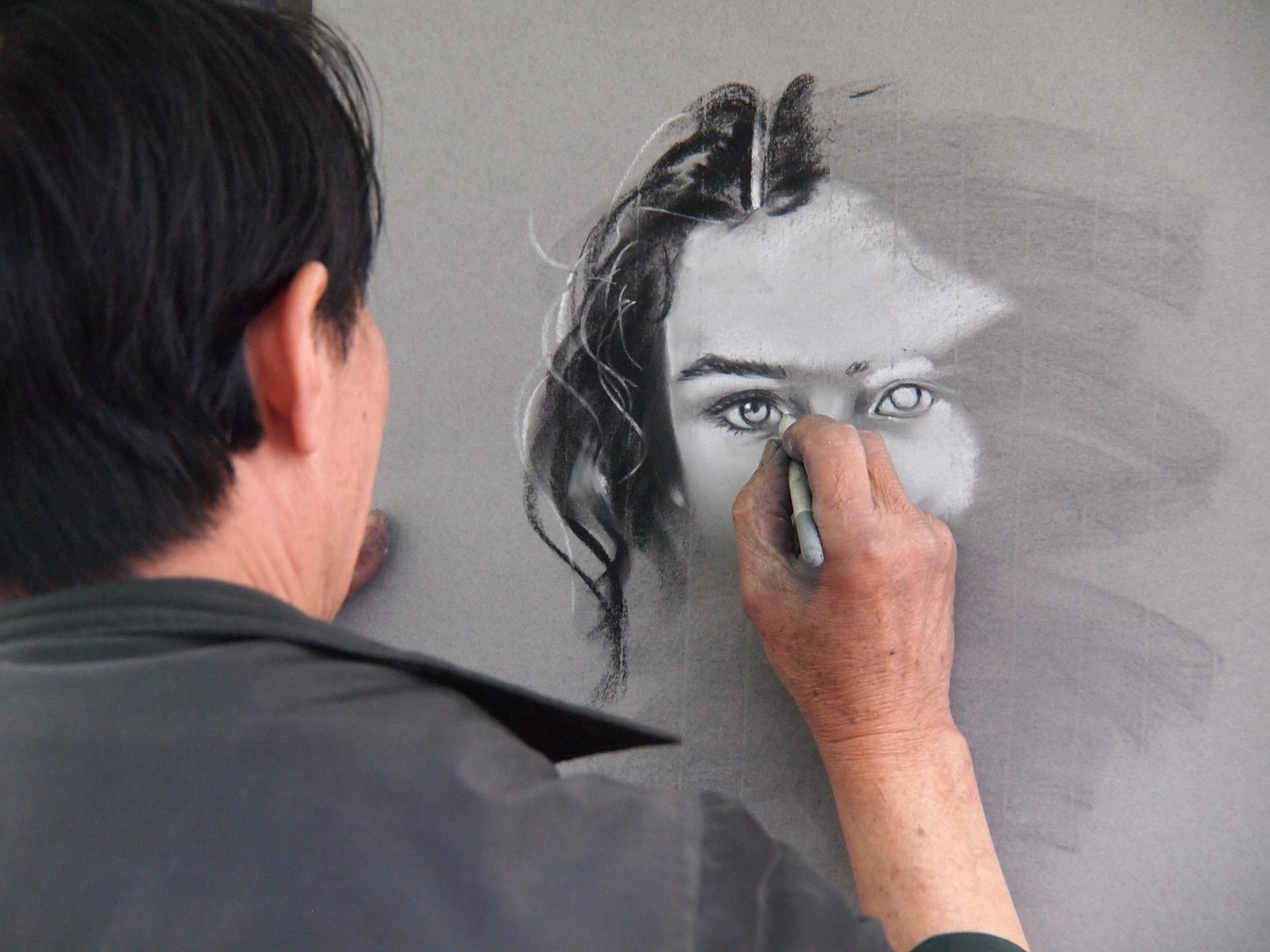

To succeed, work hard, never give up and above all cherish a magnificent obsession.
Walt Disney
Arguably, animation has never been more popular. From the first Disney films to now, animation has come a long way! The number of animated movies and animation studios seems to increase every year. Animation is everywhere, from TV and movies to advertising. So how can you get started as an animator? Let’s look at what you’ll need to get started. It’s time to learn about drawing and animation.
Essential Equipment
- ✏️ Paper and pencils – The foundation of animation, drawing, and character development.
- 🎨 Colored pencils and art supplies – Used for construction lines, design work, and visual planning.
- 📄 Transparent sheets or animation paper – Help create layered drawings and smoother motion sequences.
- 📷 Camera or scanner – Converts hand-drawn frames into digital animation files.
- 💻 Computer – Runs animation software and supports video production workflows.
- 🖥️ Video editing and animation software – Combines drawings, frames, and effects to create finished animations.
- 🖊️ Graphics tablet and stylus – Allows artists to draw directly into animation programs.
- 🎥 Rostrum camera – Helps photograph animation frames with consistent positioning.
- 🧱 Stop-motion materials – Clay, figures, or models used to animate physical objects frame-by-frame.
- 🎙️ Audio equipment – Microphones and recording tools for voice acting, dialogue, and sound effects.


Fundamental Tools for Aspiring Animators
The earliest animations were made on celluloid (cels) sheets. These were transparent films that could be painted upon. As you learn to animate, you'll see that this technique isn’t as common anymore, but it’s still very popular among animation fans. Here’s what you’ll need to get started.
Paper and Pencils
As you draw on paper, you might want to draw construction lines. Many artists in comic books and animation use colored pencils to draw construction lines. Colors are often used as they’re easier to distinguish from the final lines, which will be gray or black. Colors become even more useful when digital construction lines are removed. By choosing colors such as red or blue, computer programs can more easily determine which lines to remove and which to keep.

There are special types of colored pencils that you’ll want to get. Col-Erase, for example, is a brand of colored pencils that are easily erased. There are several brands of easy-erase colored pencils. Pick the ones that work for you. Of course, you can also invest in other drawing tools if you don’t want to do everything with graphite pencils. You can animate with pastels, poster paints, watercolors, felt-tips, etc.
As we said earlier, traditional animation requires many drawings. You’ll need them for every frame. The longer your animation is, the more sheets or cels you’ll need. You can even do it with white printer paper, but generally, the thinner, the better. You may also want to invest in a lightbox. Ideally, you’ll want to work on cels. These are acetate sheets like you’d find used with an overhead projector. However, cels can be expensive.
A Camera or Scanner
Once you’ve done the drawings, you’ll want to order them and play them back. Before you can do this, you’ll need to scan them. Scanning is easier than taking a photo of them. Scan each frame and don’t forget to number or order them. You don’t want to have to go through hundreds of drawings and order them manually! If you don’t have a scanner but you do have a good camera, you can take photos of your drawings. Make sure you also take the photos from the same distance and angle so they’ll line up more nicely.

A Graphics Tablet and Stylus
A graphics tablet, like those made by Wacom, allows the animator to draw directly onto the computer without needing to scan their drawings. Many artists use these tablets for drawing, art, animation, and graphic design, and there are models for all budgets. You just need to plug it into your computer, and you’re ready to go.
Wacom Intuos – A reliable and affordable tablet with strong pressure sensitivity and excellent compatibility with most animation software.
XP-Pen Deco Series – A budget-friendly option offering large drawing surfaces and customizable shortcut buttons, making it a good entry-level animation tool.
Huion Inspiroy Series – Known for affordability and strong performance, this tablet is popular among students learning animation and digital art.
Wacom One Display Tablet – A slightly higher-priced option that allows you to draw directly on a screen, helping beginners transition smoothly from paper animation to digital production.
A Good Computer
Whether you’re making 2D or 3D animation with your computer, you’ll need a good computer. Animators need computers with powerful graphics cards. They’ll also need a good amount of RAM. Otherwise, you could always start taking drawing lessons online. Aim for:
- At least 16 GB RAM
- A dedicated graphics card (GPU)
- A fast SSD storage drive
- A modern multi-core processor

Known for excellent performance, strong graphics capability, and smooth compatibility with professional animation software such as Adobe After Effects and Toon Boom Harmony. This is a great option for beginners who want a long-term animation production device.
A flexible device combining laptop performance with touchscreen drawing capabilities. It works well alongside graphics tablets and stylus tools, making it ideal for digital drawing and animation work.
A powerful Windows-based option with strong processors and graphics cards. These laptops support most animation programs and are popular among beginner animators learning digital production.
Desktop computers often provide better performance for the price. Beginners working with 3D animation tools like Blender or Autodesk Maya may benefit from desktops with high RAM capacity and upgraded graphics cards.
Video Editing Software
You need to put together your drawings or images as an animation. To make this animation, programs like Adobe Premiere are recommended. Video editing software can also put together animations.
For Adobe, however, you’ll need a subscription. There are other programs available, but the Adobe suite is most people’s favorite and comes highly recommended.
| Animation Software | Main Uses | Price | Key Features | Usability Level |
|---|---|---|---|---|
| Blender | 3D animation, modeling, motion graphics, video production | Free | Full 3D production suite, rendering tools, sculpting, simulation tools | Intermediate but beginner-friendly with tutorials |
| Adobe After Effects | Motion graphics, visual effects, video animation | Subscription (Adobe Creative Cloud) | Industry-standard effects tools, timeline editing, strong plugin support | Beginner to Advanced |
| Toon Boom Harmony | 2D animation, character animation, professional animation production | Paid subscription | Professional rigging tools, frame-by-frame animation, studio-quality output | Intermediate to Professional |
| Pencil2D | Hand-drawn 2D animation, beginner animation projects | Free | Simple interface, lightweight animation drawing tools, open-source | Beginner |
| Moho (Anime Studio) | 2D animation, character rigging, cartoon production | Paid license | Bone rigging system, vector animation tools, strong character animation features | Beginner to Intermediate |
| Animation Paper | Traditional hand-drawn animation workflows | Free version available / Paid upgrade | Clean drawing interface, frame-by-frame animation support, onion skin tools | Beginner |
| Autodesk Maya | 3D animation, modeling, game development, film production | Paid subscription (Student versions often free) | Industry-standard 3D animation tools, physics simulation, character rigging | Advanced (Learning curve for beginners) |
| Aurora 3D Animation Maker | Text animation, logo animation, beginner motion graphics | Paid license | Easy drag-and-drop animation tools, preset animation templates | Beginner |
Additional Animation Tools and Equipment to Enhance Animation Workflow
Animation techniques have changed a lot in recent years. We’ve come a long way from Snow White and the Seven Dwarfs. Nowadays, almost every blockbuster animation is produced in 3D using CGI, and while it was initially more expensive, new tools and technologies have made the process easier. As for art supplies like acetate cels, they can be a little trickier to find. Specialist art stores may carry Col-Erase, for example, but it’s a good idea to look online. Don’t hesitate to ask store staff for advice on which products are best and which they would recommend. In addition to offering erasers, pencils, felt-tip pens, and paints, they also offer excellent advice. The same is true for those who’ve studied animation at college, where you may make your first animation.
External Monitor
Beginners might focus on what you need for animation. If you're working in digital animation, you'll want to consider using an external monitor to improve your workflow. A second screen gives you more space to display reference images, animation timelines, or even character design sheets. It's common for animators to use monitors alongside graphics tablets and animation programs. These can help you organize your projects more effectively. A large display makes it easier to review motion sequences, edit video frames, and fine-tune your drawings. When choosing animation equipment, such as monitors, beginners should consider:
- High resolution (Full HD or 4K) – Provides clearer images and helps animators work with detailed character art and animation graphics.
- Accurate color reproduction – Important when creating animation projects that require consistent lighting and visual effects.
- Large screen size (24 inches or larger) – Offers more space for animation software timelines and drawing panels.
- Adjustable stand or ergonomic design – Helps animators stay comfortable during long production sessions.
Dell UltraSharp Series – Known for excellent color accuracy and reliable performance for digital art and animation production.
LG UltraFine Monitors – Popular among artists and animators working with Mac computers and creative software.
ASUS ProArt Monitors – Designed specifically for creative professionals, offering strong color precision and display clarity.
Animation Programs
A good computer lets you use good animation programs. These programs allow people to draw on a computer and assemble the animation digitally. Here are some of the most popular tools for 2D and 3D animation:
- Autodesk Maya
- Autodesk Softimage
- Houdini
- Aurora 3D Animation Maker
- Adobe After Effects
- Blender
- Animation Paper
- Moho
- Pencil2D
- Harmony
- Houdoo
- Animate CC
A lot of these programs and software are used by professional animators.
Audio Equipment
Unless you’re making silent movies, you might want to invest in a microphone to record voices and SFX for your animations. A good microphone will provide good sound quality. A directional microphone is great for recording voices, while Zoom microphones are better at capturing ambient noise.

You can also plug directional mics into a Zoom recorder. Where can you get the equipment for making animations? When it comes to digital tools, you can get most of them from larger electronic stores and retailers. You can find computers, cameras, microphones, etc.
USB condenser microphones – Easy to set up and suitable for voiceovers, narration, and character dialog.
Directional microphones – Reduce background noise and improve vocal clarity.
Portable audio recorders – Useful for capturing sound effects and ambient noise that can be added to animation scenes.
After you record audio, you'll want to edit and clean up the recordings with software. Programs can be used to remove noise, adjust sound levels, and synchronize audio with animation. Fortunately, there are some very powerful free options out there, so you can get started.
- Audacity – A free, open-source audio editor widely used by beginners and professionals. It provides fundamental tools for recording and editing audio tracks and is available across major operating systems.
- GarageBand – A beginner-friendly audio production tool available on Mac devices. It includes multitrack editing, built-in sound effects, and simple mixing features, making it easy for new animators to record voiceovers and sound effects.
- Adobe Audition – A professional audio editing platform offering advanced mixing, restoration, and multitrack editing tools. It is widely used for studio-quality audio production and advanced sound design.
Rostrum Camera
The rostrum camera is used for taking photos of animation cels. It’s a platform with a downward-pointing camera that can be fixed in place. This allows you to quickly swap out drawings without repositioning the camera. It allows for smoother animation as all the photos of the drawings will all be taken from the same distance and at the same angle. That said, these are pretty expensive. You could end up spending thousands on a studio-grade rostrum camera. This isn’t something for all budgets, that’s for sure.
Stop-Motion Tools
Stop-motion is a traditional animation technique that uses physical 3D models. This technique was mostly replaced by CGI. Stop-motion is often done with modeling clay, but can also be done with dolls, Legos, or other physical materials, and it's a great way to get started with animation for beginners.
If you need help with drawing, animation, scriptwriting, or character design, consider working with one of the many talented and experienced private tutors on Superprof. There are tutors all over the country and around the world ready to help you learn new skills, prepare for exams, or take up new hobbies.
There are three main ways to enjoy private tutorials: face-to-face with your tutor, online, or in a group with other students. Each type of tutorial has its advantages and disadvantages, so it's down to you, your learning style, and your budget.
There's a lot to consider when hiring a private tutor, so it's a good idea to take your time. Fortunately, many tutors on Superprof offer the first lesson for free, so you can try out several tutors and see if they're right for you before hiring them.
Summarize with AI:
Did you like this article? Leave a rating!


 Loading...

I enjoyed the article it has all the info I need DIY
good information