

AutoCAD is a leading computer-aided design (CAD) software used for creating precise 2D and 3D drawings.¹ For beginners, mastering AutoCAD involves understanding its interface, learning basic drawing and modification tools, and practicing through real-world projects. This guide offers a step-by-step approach to help you get started efficiently.





Understanding AutoCAD and Its Applications
AutoCAD is a design software. It's used across multiple industries. It's worthwhile understanding what it does and where it's used before you start learning how to use it.
What is AutoCAD?
AutoCAD is computer-aided design (CAD) software by Autodesk.² You can create 2D drawings and 3D models with it. Professionals use AutoCAD for a variety of applications.
Industries and Professions Using AutoCAD

Setting Up AutoCAD for the First Time
To avoid common mistakes, take the time to set up AutoCAD correctly.⁴ Installation, workspace configuration, and interface familiarity are all key. With these, you'll have a strong foundation for drafting and design workflows.
Starting AutoCAD correctly makes learning much easier and prevents common drafting mistakes. Before creating drawings, beginners should focus on building strong setup and workflow habits.
✔ Always select the correct drawing template before starting a project
✔ Confirm measurement units match your project requirements
✔ Enable Object Snap (OSNAP) to improve drawing precision
✔ Configure grid and snap settings to maintain consistent scale
✔ Customize your workspace layout to match your workflow
✔ Save your workspace configuration to avoid repeating setup steps
✔ Regularly save your drawings to prevent data loss
✔ Use keyboard shortcuts early to build efficient drafting habits
Developing these habits early is one of the best ways to learn AutoCAD efficiently and build professional drafting skills.
System Requirements and Installation
Navigating the User Interface
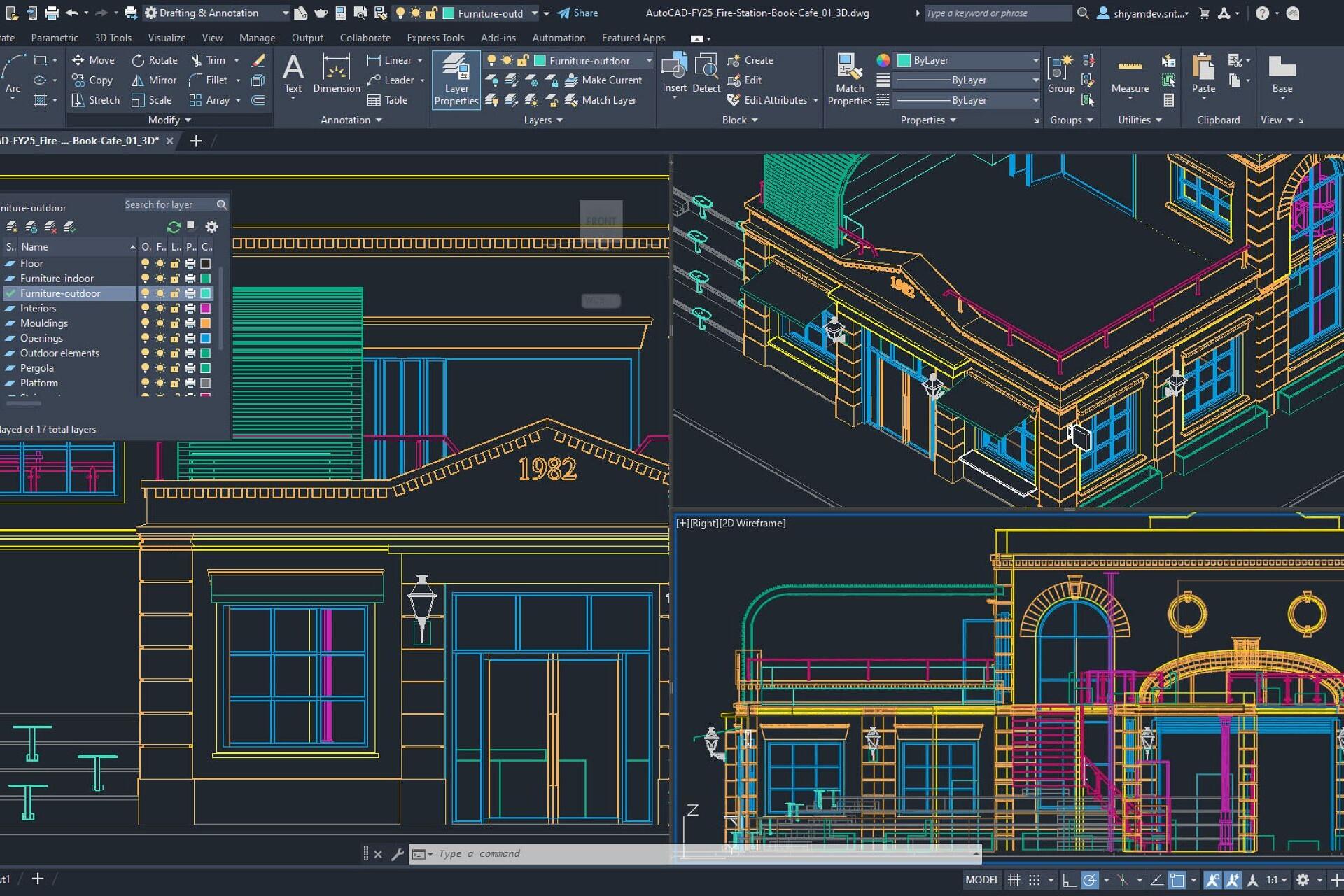
The AutoCAD interface has tools for creating and editing drawings.⁶ The ribbon is home to drawing and modification tools. The command line allows for direct command input. The workspace also features the drawing area, navigation tools, and status bar controls that manage grid, snap, and object precision settings.
Essential Drawing and Editing Tools
AutoCAD drawing and editing tools allow users to create geometry and refine designs. These core commands can help beginners create technical drawings efficiently. Here are a few to get started.
Basic Drawing Commands
| Command | Shortcut | Function | Beginner Use Example |
|---|---|---|---|
| LINE | L | Creates straight line segments between two points | Drawing walls, borders, or mechanical edges |
| CIRCLE | C | Creates circular objects using center and radius/diameter | Creating holes, columns, or round components |
| RECTANGLE | REC | Creates rectangular shapes using two corner points | Drafting rooms, plates, or layout boundaries |
| POLYLINE | PL | Creates connected lines and arcs as one editable object | Drawing continuous wall outlines or piping layouts |
| ARC | ARC | Creates curved segments between defined points | Designing curved doorways or rounded edges |
Modification Commands
| Command | Shortcut | Function | Beginner Use Example |
|---|---|---|---|
| MOVE | M | Repositions selected objects | Adjusting layout positioning |
| COPY | CO | Creates duplicates of objects | Repeating windows or components |
| ROTATE | RO | Rotates objects around a base point | Aligning fixtures or equipment layouts |
| SCALE | SC | Resizes objects proportionally | Adjusting drawing component sizes |
| TRIM | TR | Removes unwanted portions of objects | Cleaning up intersecting geometry |
| EXTEND | EX | Extends objects to meet another boundary | Completing walls or connecting lines |
Organizing Your Work with Layers and Properties
Layers and object properties are a good way to keep drawings organised and easy to manage.² With structured layer systems, you can improve visibility control, editing efficiency, and professional drafting presentation. This is essential across complex AutoCAD projects.
Understanding Layers
| Feature | Purpose | Beginner Benefit |
|---|---|---|
| Layers | Separate drawing elements into categories | Keeps drawings organized and easier to edit |
| Colour Properties | Assign visual color coding to objects | Improves visual clarity and navigation |
| Line Types | Control how lines appear (solid, dashed, etc.) | Helps communicate design intent |
| Line Weights | Adjust thickness of drawing lines | Improves print readability |
| Layer Visibility | Toggle layers on/off | Simplifies working with complex drawings |
Object Properties and Styles
Annotating and Dimensioning Your Drawings
Annotations and dimensions are how you communicate technical information clearly within drawings. With proper labeling, notes, and measurement tools, you can ensure designs are easy to interpret and renew. Accurate annotation is a good way to help teams, clients, and contractors understand drawings.
Adding Text and Annotations
- Choose the correct layer for notes and labels (for example, a dedicated “ANNOTATION” layer) to keep text organised.
- Add text using TEXT for short labels or MTEXT for longer notes, then set a readable height before placing it.
- Use LEADER or MLEADER to connect notes to drawing features so it's clear which annotation each refers to.
- Align and tidy annotations by matching styles, maintaining consistent spacing, and avoiding overlaps with key geometry.
- Review the drawing at plotting scale to confirm that text and callouts remain legible and correctly positioned.
Dimensioning Techniques
| Tool | Shortcut | Function | Beginner Use Example |
|---|---|---|---|
| TEXT | TEXT | Adds written labels to drawings | Naming rooms or components |
| MULTILINE TEXT | MTEXT | Adds formatted paragraph-style text | Detailed notes or specifications |
| DIMENSION | DIM | Adds measurement annotations | Showing lengths or diameters |
| LEADER | LE | Creates callout arrows with notes | Explaining specific design features |
| MULTILEADER | MLEADER | Adds flexible annotation callouts | Labeling mechanical or architectural details |
Introduction to 3D Modeling in AutoCAD
AutoCAD can create three-dimensional models from two-dimensional drawings.¹ With 3D modeling, you can visualize projects more realistically. By learning the basic 3D tools, you can expand your AutoCAD skills and practice using blocks.

Transitioning from 2D to 3D
- Switch to a 3D workspace (for example, 3D Basics) so the modeling tools and view controls are visible.
- Set up your view using a 3D view (isometric) and confirm your UCS and drawing units match the project.
- Start with clean 2D geometry (closed shapes work best), then convert it into 3D using tools like EXTRUDE.
- Refine the model using simple edits such as PRESSPULL, UNION, and SUBTRACT to add or remove volume.
- Orbit and inspect the model from multiple angles to check that shapes, proportions, and clearances look correct.
Simple 3D Projects for Beginners
- Extrude a 2D rectangle into a basic block, then add a circular cut-out for a “plate with a hole” practice model
- Create a simple room layout from a 2D floor plan by extruding walls to height and adding a doorway opening
- Model a basic cylinder-and-block shape to practice combining solids with UNION and shaping with SUBTRACT
- Apply a basic material and run a quick visual style change (wireframe vs shaded) to understand 3D display modes
- Save a clean version of the model and export/share it using a common format if your workflow requires it
Best Practices and Tips for Efficient Workflow
By following efficient workflow practices, beginners will learn how to work faster and reduce mistakes from the second they start learning. Get into good habits to improve drawing accuracy, organization, and project consistency. Productivity techniques are useful for long-term AutoCAD skill development, too!
Keyboard Shortcuts and Customisation
| Shortcut | Function | Why Beginners Should Use It |
|---|---|---|
| Ctrl + N | New drawing | Quickly start new projects |
| Ctrl + S | Save drawing | Prevents data loss |
| Ctrl + Z | Undo | Correct mistakes instantly |
| Ctrl + C / Ctrl + V | Copy and paste objects | Speeds up repetitive drafting |
| F3 | Toggle Object Snap | Improves drawing precision |
| F7 | Toggle Grid | Helps maintain drawing alignment |
| F8 | Toggle Ortho Mode | Forces straight line drawing |
| Mouse Wheel Drag | Pan view | Navigate drawings efficiently |
| Z + Enter | Zoom command | Improves drawing navigation |
Saving, Exporting, and Sharing Your Work

Additional Resources and Learning Materials
Build your confidence and technical accuracy in AutoCAD by going beyond the basics. With courses, tutorials, and instructor support, you'll develop skills much more quickly.⁷ Learning platforms and practice will help you correct errors and learn industry-standard workflows and best practices to avoid issues.
Online Tutorials and Courses
References
- Autodesk. AutoCAD Foundations Tutorial Series. Autodesk Blog, https://www.autodesk.com/blogs/autocad/autocad-tutorial-for-beginners-autocad-foundations/. Accessed 11 Feb. 2026.
- Autodesk. AutoCAD Quick Start Guide. Autodesk Learn, https://www.autodesk.com/learn/ondemand/curated/autocad-quick-start-guide. Accessed 11 Feb. 2026.
- Autodesk. AutoCAD Keyboard Shortcuts Guide. Autodesk, https://damassets.autodesk.net/content/dam/autodesk/www/shortcuts/autocad/AutoCAD-Shortcuts-Guide-Autodesk.pdf. Accessed 11 Feb. 2026.
- Autodesk. Get Started with AutoCAD Collection. Autodesk Learn, https://www.autodesk.com/learn/ondemand/collection/get-started-with-autocad. Accessed 11 Feb. 2026.
- Autodesk. Hitchhiker’s Guide to AutoCAD. Autodesk Help, https://help.autodesk.com/cloudhelp/2025/ENU/AutoCAD-GettingStarted/files/GUID-2AA12FC5-FBB2-4ABE-9024-90D41FEB1AC3.htm. Accessed 11 Feb. 2026.
- Autodesk. Learning Videos and Drawing Basics. Autodesk Help, https://help.autodesk.com/view/ACD/2025/ENU/?guid=GUID-39B76D69-225D-45EE-A9AC-59CCBF48AF64. Accessed 11 Feb. 2026.
- Coursera. AutoCAD for Beginners: Drafting Blueprints and Schematics. Coursera, https://www.coursera.org/projects/autocad-for-beginners-drafting-blueprints-and-schematics. Accessed 11 Feb. 2026.
- Interscale Education. Learn AutoCAD: A Beginner’s Guide. Interscale, https://interscale.com.au/blog/learn-autocad/. Accessed 11 Feb. 2026.
- Vagon. Complete Guide to AutoCAD. Vagon, https://vagon.io/blog/complete-guide-to-autocad. Accessed 11 Feb. 2026.
Summarize with AI:
Did you like this article? Leave a rating!

 Loading...