

Computer hardware has evolved a lot since its beginnings. You can now create your own PC on spec depending on whether you want to edit videos or have a high-end gaming machine. Computers are made up of a lot of different parts and they all have their own unique role to play in making it function, whether you use your computer for designing software or just surfing the internet and watching silly videos.
But what is a computer really made of and how does it actually work? Here are a some answers that will help you become much better educated on PC hardware.
| Component | Function |
|---|---|
| Central Processing Unit (CPU) | Acts as the brain of the computer, performing calculations and executing instructions. |
| Memory (RAM) | Temporarily stores data and programs currently in use for quick access. |
| Storage (HDD/SSD) | Provides long-term storage for files, programs, and the operating system. |
| Motherboard | Connects and allows communication between all components of the computer. |
| Graphics Processing Unit (GPU) | Handles rendering of images, videos, and animations, especially in games or design. |
| Power Supply Unit (PSU) | Converts electrical power to the correct voltage for the computer's components. |
| Cooling System | Prevents components from overheating by dissipating heat. |
| Input Devices | Allows users to interact with the computer (e.g., keyboard, mouse). |
| Output Devices | Displays or outputs results of computer processes (e.g., monitor, speakers). |
| Network Interface | Connects the computer to the internet or other networks for communication. |


What Is a Computer?
A computer is a powerful machine designed to process data and execute complex operations. At its core, it functions like an ultra-fast calculator — capable of handling everything from basic arithmetic to 3D rendering and global communication.
Today, whether you’re using a Mac or a PC, the essential structure is the same. A PC — short for Personal Computer — refers to any general-purpose computer meant for individual use. These machines allow users to perform tasks through software applications and interact with the system via input and output devices like a keyboard, mouse, and screen.
The first PCs, such as IBM’s PC/XT from the early 1980s, set the stage for the modern computer by introducing standard components that could be easily duplicated, repaired, or upgraded. This modular design remains at the heart of today’s computers, whether you’re assembling a gaming rig or using a school-issued laptop.
From powering robotics and car systems to enabling social media platforms, computers play a critical role in our daily lives — including helping us understand what Facebook is really for in the context of digital communication and connectivity.
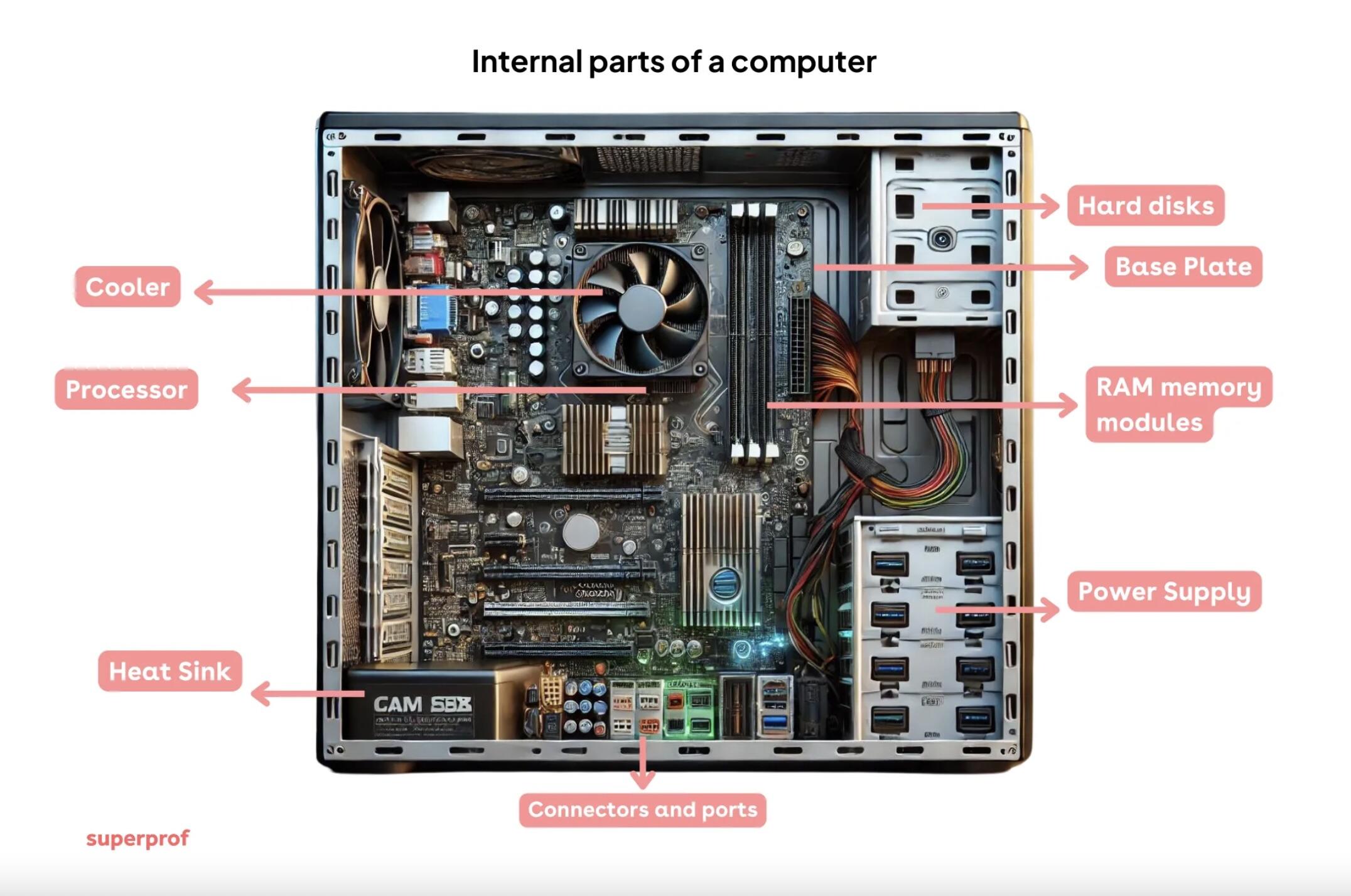
👇 Below is a diagram highlighting the internal parts of a standard desktop computer — including the CPU, RAM, motherboard, and other essential components that make your machine run.
But a computer isn’t only about what’s inside — the parts you interact with every day matter just as much.
From typing to clicking, here are the external parts that let you operate your device. The diagram below illustrates common peripherals like the keyboard, monitor, mouse, and speakers 👇

Anatomy of a Central Unit
PC components are not visible from the outside - you have to open the casing to see what electronics make it work. Underneath it you will find a CPU as well as a hard drive, motherboard, power unit, RAM, and a graphics card.
The Motherboard
The motherboard is the main component of the central unit. It centralizes and processes the data exchanged within the computer with the help of the processor, which is attached to it. It links the hard drive, mouse, keyboard, network, USB ports, etc. together.
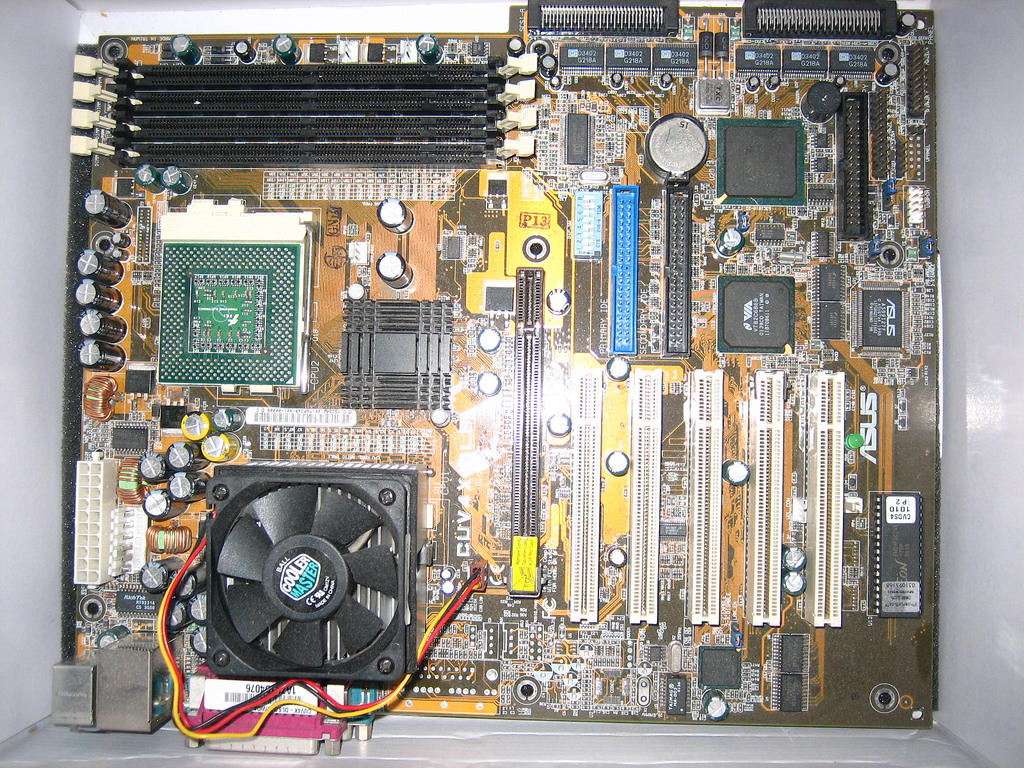
This is the central nervous system onto which all the other computer components are plugged in.
The motherboard is a printed circuit connected to a chipset (a set of components that control almost of all of the motherboard).
The chipset components are soldered directly onto the motherboard, and it is they that dictate what sort of processors and memory chips can be used with this computer. From 1995 on, almost all motherboards use the ATX format.
The Central Processing Unit (CPU)
The Central Processing Unit or CPU is the computer’s brain. It organizes the data exchange between the various components (RAM, hard drive, graphic card…)
Its main tasks are:
- Accessing data stored in memory
- Processing data
- Storing data in the memory
It is the CPU that does the calculations that allow the user to interact with the computer and display data on the monitor. At the time of writing, processors can reach 3Ghz and some computers have several processors working in tandem.
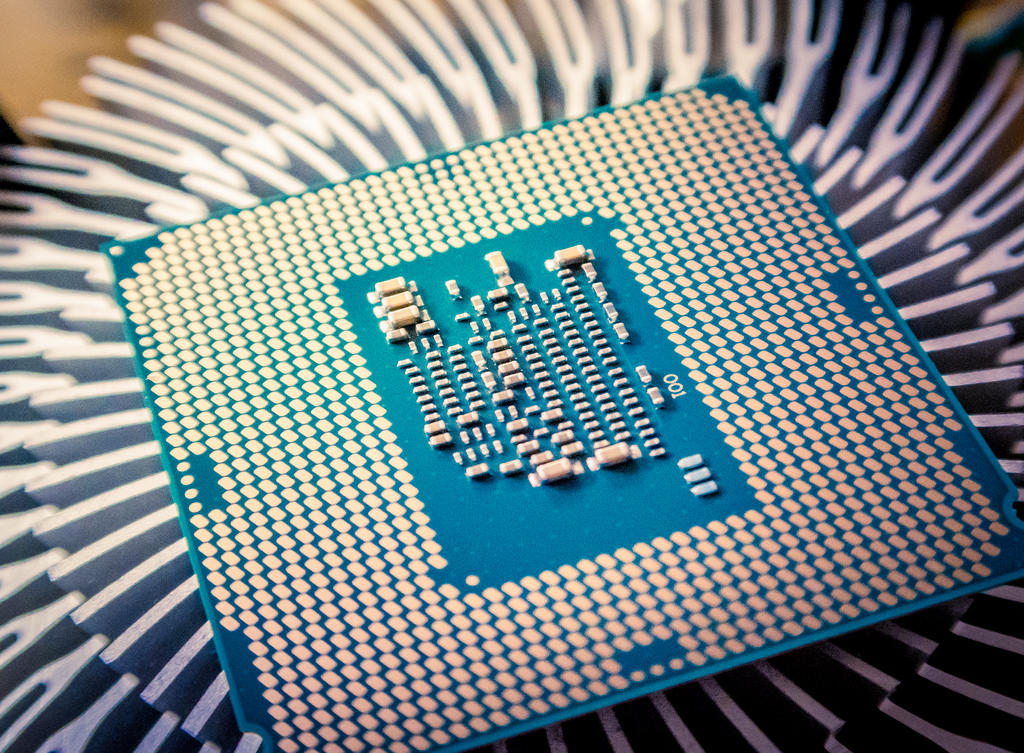
This means they are capable of processing billions of information packets per second and accomplishing complex calculations that are at this moment pioneering advances in science and medicine. Your computing power will depend on the type of processor you have.
The Graphic Processing Unit (GPU)
If you are a gamer, a good graphic card is important. It takes over the conversion of computer code into visual data, taking some of the workload from the processor, which can use the free capacity to load other game data. A graphic card is useful as soon as you are working with high-quality images - as a graphic designer, for example, or a printer. Alternatively, the motherboard chipset can also integrate a graphic card.
Random Access Memory (RAM)
RAM (Random Access Memory) is a type of volatile memory accessed by the processor. It stores the data currently in use. It enables quick access by the CPU, making processes smoother and faster. However, this memory is volatile — everything stored is erased when the computer is turned off. RAM typically ranges from 4GB to 64GB, depending on usage needs.
The RAM’s particularities are:
- Its fast access speed
- Its temporary aspect: all data in the RAM is lost once the computer is turned off.
Storage Devices
Storage is your computer’s long-term memory. It holds everything from the operating system (Windows, macOS, or Linux) to installed software, personal files, and system data. Unlike RAM, storage retains data even when the computer is powered off.
There are several types of storage devices:
These traditional drives contain mechanical components, including spinning magnetic discs and a read/write head. While generally more affordable, they are slower and more prone to wear over time.
These drives have no moving parts and offer significantly faster data access and transfer speeds. They are more durable and energy-efficient than HDDs.
Useful for backups and additional storage, these devices connect via USB and can store large amounts of data.
Storage capacity varies widely, from 256 GB in basic laptops to several terabytes in high-performance machines. SSDs are now preferred for most users due to their speed, but some setups combine both SSD and HDD for efficiency and large-scale storage.
As you dive deeper into parts of computer and their functions, it's worth understanding how storage not only affects speed but also impacts boot time, application performance, and data reliability. A well-balanced storage setup can dramatically enhance your overall computing experience.
As the world's best and most famous programmers have extended what computers can do, the demand for HDD space has increased.
The average capacity of new hard disk drives has grown from 1TB in 2015 to over 10TB in 2024.
Power Supply Unit (PSU)
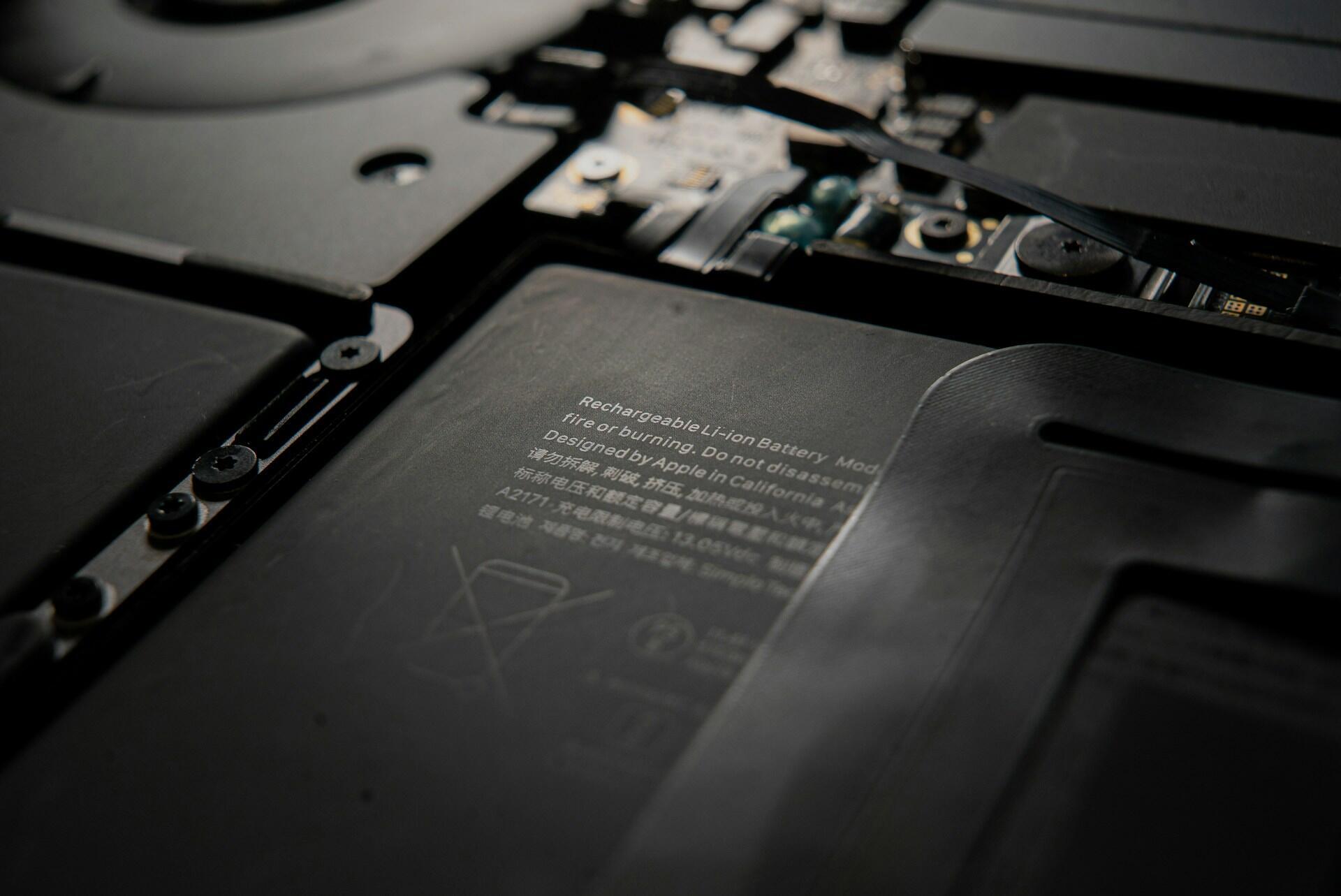
The PSU (Power Supply Unit) converts electricity from a wall outlet into a usable form for the computer. It delivers power to the motherboard, CPU, GPU, storage drives, and other internal components, ensuring stable and reliable energy distribution. Because this conversion process generates heat, most PSUs include a built-in fan to help dissipate it and maintain optimal operating temperatures.
Wattage requirements depend on the computer’s hardware configuration; high-performance systems with powerful graphics cards or multiple drives may need more power, while basic setups require less. Standard units typically range from 400 to 1000 watts, but higher-capacity models are also available for demanding systems.
Central Unit (System Unit)
The central unit is the main body of the computer — the physical case that holds all the essential internal components, including the CPU, hard drive, RAM, motherboard, and power supply. It’s often referred to as the system unit in desktop setups.
This is the part of the computer where all processing happens and where peripherals like the keyboard, monitor, and mouse connect, either via cables or wirelessly. In laptops and all-in-one desktops (like iMacs), the central unit is integrated into the same housing as the screen or keyboard, making it more compact.
Opening the case reveals the core electronics that make the computer function: everything from USB ports and graphic cards to internal fans and storage devices. It’s the physical and operational heart of the machine.
Computer Case (Chassis)
The computer case houses and protects all internal components. It provides structure, ventilation, and access to ports and expansion slots. Cases vary in size (e.g., mid-tower, full-tower) and often include built-in fans to support airflow and cooling.
When assembling a computer or learning through hands-on experience, the case is more than just a shell — it’s a key player in system airflow and expansion options.
The first personal computer cases were often beige because manufacturers believed neutral colors would look more professional in office environments. Today, cases come in all shapes, sizes, and even with RGB lighting, turning the humble chassis into a customizable showpiece for gamers and tech enthusiasts!
The Computer Monitor
The monitor is the part of the computer that displays the data. It is part of the human-machine interface. It is thanks to the computer screen that the user can interact with the computer. Typing on the keyboard or using a mouse modifies the data that is displayed accordingly.
Monitors can vary greatly in size. The history of computers is fascinating and as you would expect, monitors have evolved a lot – there were initially some rather "LoFi" monitors out there with very low resolution displays.
The numbers - usually given in inches - designate the screen’s diagonal. There are very compact laptop screens: 10 inches for the smallest laptops and netbooks. Office computers start at around 15 inches and can go up to 27 inches or more, especially if you decide to hook the computer up to a TV screen.
Resolution and prices vary as well. For example, a 24 inch screen usually has a resolution of 1920 x 1080 pixels, or high definition. Screens can be plugged in using the VGA, DVi or HDMI connections.
The Keyboard
One of the computer’s external hardware components. It lets you write text and communicate with the computer. Keyboards generally have about a hundred keys: the letters of the alphabet, numbers, punctuation marks and special functions. It is, in a way, the descendant of the typewriter.
There are several types of keyboards: wireless or not, with touchpad or without, gaming keyboards, specialized keyboards with additional keys and functions, and many more!
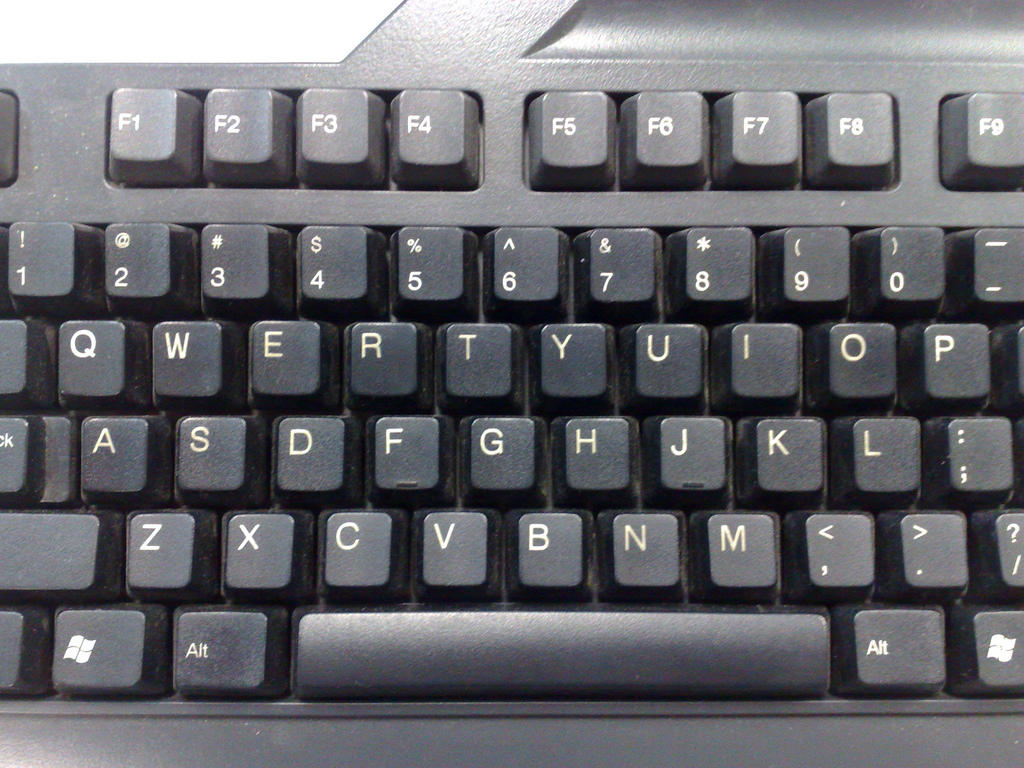
The setup of the keyboards varies according to the language: English-speaking countries use the QWERTY keyboard (the first letters of the top row); other countries have different setups.
The Computer Mouse or Touchpad
The mouse or touchpad is what lets you move the cursor (that little arrow) on the monitor. It lets you position it over certain elements and select them by clicking on the left button ("left-click") or access certain functions by clicking on the right one ("right-click). Most have a little wheel in the middle that lets you scroll up and down in text documents and websites (some have a touchpad in the middle instead).
Whether you are exploring Facebook and other social media or you are playing a game, the mouse is a key piece of kit.
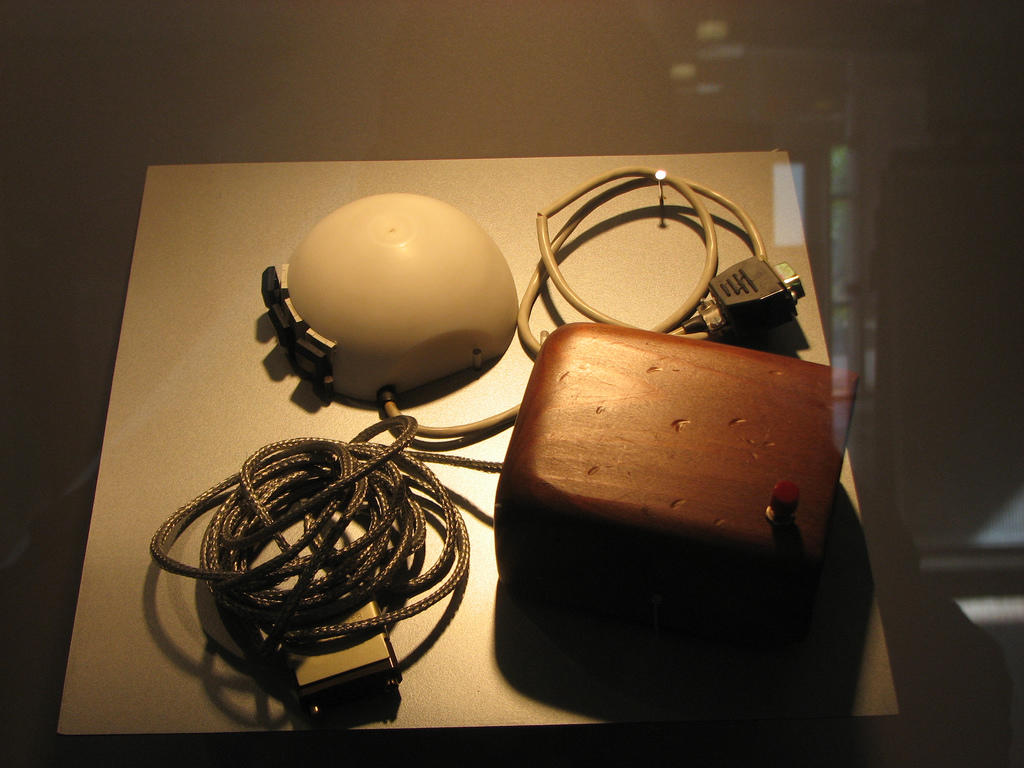
Mice have a motion captor on their underside. Now it is usually optical or laser-based, but some old-timers may remember the ball. You can buy plug-in mice that connect to your computer with a wire and wireless mice for which you only need to plug in a little captor to a USB port and make sure it is charged or change its batteries from time to time.
Additional Computer Parts
These days, most screens include a webcam. But there are other accessories including external webcams that you can attach to your computer to expand its functions:
- A printer
- A scanner
- A webcam (usually integrated on the screen)
- An internet connexion (by wire or WiFi)
- USB (Universal Serial Bus) sticks or other devices
- A memory card
- A controller
Today, almost all external hardware can be attached through the USB port - no more guessing which port to use for your mouse or printer!
With Superprof, you can learn more about computers and how they work with one of many IT tutors that we can connect you to. Whether you are a total beginner or you are looking to work in computing, you can enhance your knowledge in a one-to-one setting with Superprof.
Summarize with AI:
Did you like this article? Leave a rating!


 Loading...